Bravura-AI PlantUnity Historian Explorer

Windows desktop app · DeltaV Continuous Historian

Open, explore, and export DeltaV historian data, right on your desktop.

PlantUnity Historian Explorer opens DeltaV Continuous Historian .xfc archive files directly. No historian server, no database, no cloud. Point it at a folder of exports and instantly browse every tag, inspect metadata, chart trends, and export to CSV, Excel, or SQLite. Browsing and export run offline.

Windows 10 / 11 (64-bit) · Browse and export offline · Pro subscription, monthly or annual

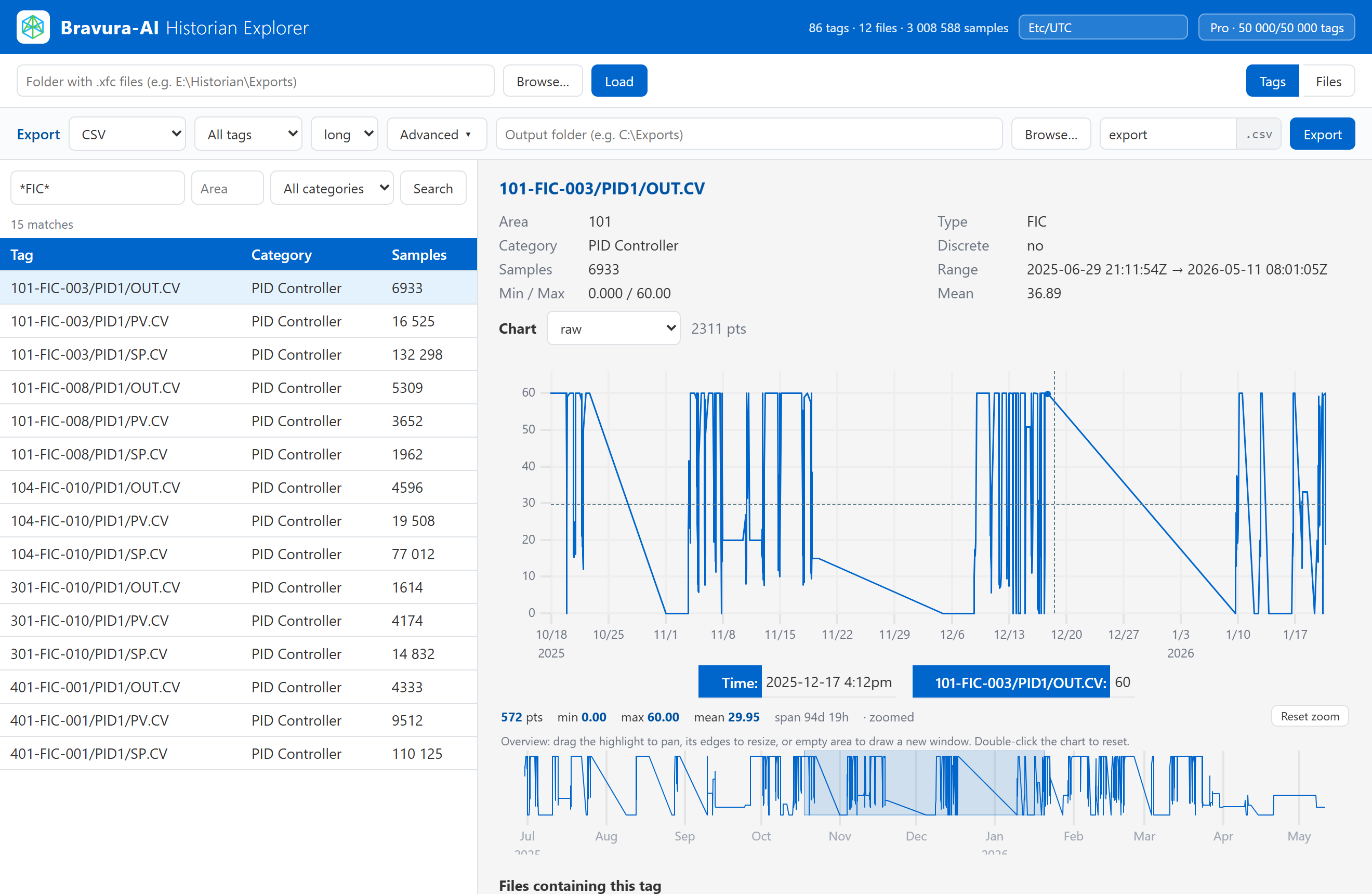
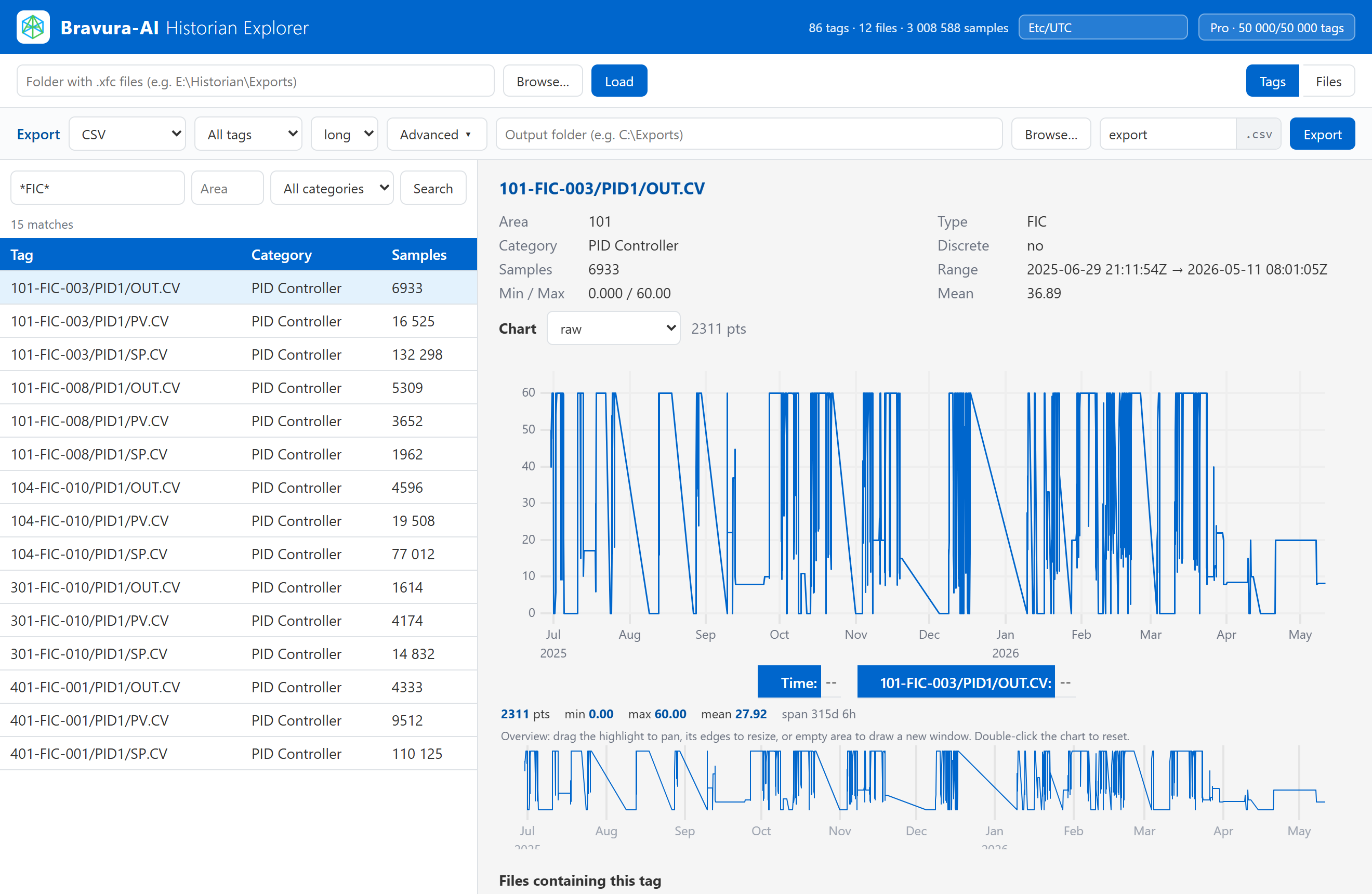
Per-tag metadata and interactive trend charts in PlantUnity Historian Explorer

Built for control-systems engineers

Everything you need to get DeltaV historian data off the plant floor and into your analysis, without standing up any infrastructure.

No server, no setup

Point at your .xfc export folder and go. No historian server, database, or cloud account required.

Reads native .xfc

Opens DeltaV Continuous Historian archive files directly: the exact files your plant already produces.

Offline ready

Browsing, charting and export run entirely on the workstation. A Pro subscription is verified online: the app checks in every 4 hours and keeps working for up to 7 days without a connection. Air-gapped subscriptions, for PCs that can never connect, are available on request.

Fast on big data

Browses and charts millions of samples in seconds. Sub-second tag search across many files.

Export anywhere

Raw export to CSV (long or wide), Excel (per-tag or all-in-one) and a raw SQLite database with every Pro subscription. The Free demo exports CSV.

Metadata at a glance

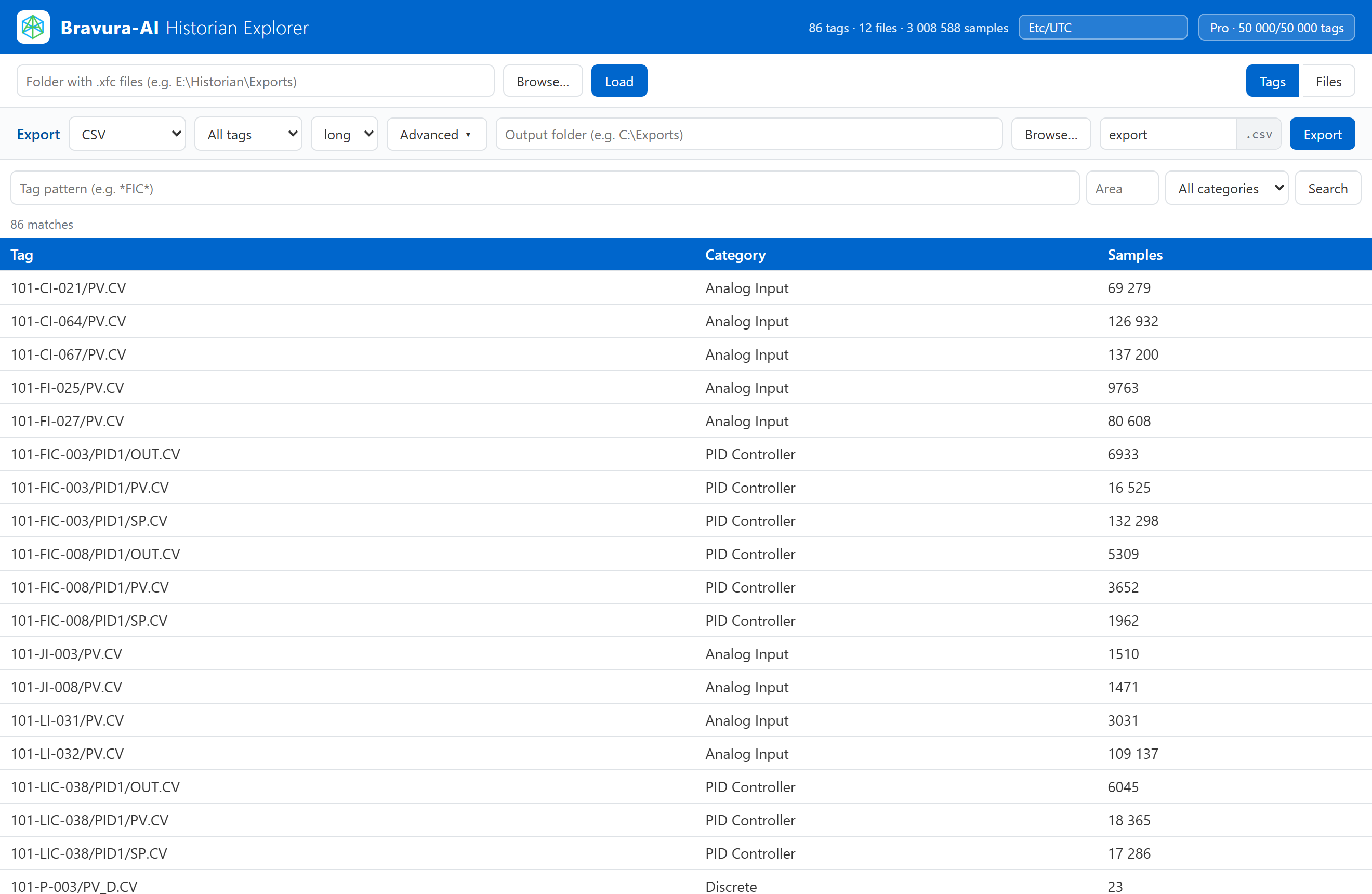
Per-file view (tags, sample counts, time spans) and per-tag view (which files contain it, ranges, min/max/mean).

Advanced Export Pro

Resample on the way out (linear, step/LOCF, nearest, time-weighted average, min/max/count, auto) with boundary fill, quality filtering, and despike / deadband / swinging-door noise filters. Included with every Pro subscription; not part of the Free demo.

Interactive chart with overview brush

Zoom into a window, navigate via the overview brush below, see live stats (count, min, max, mean, span) for the visible range.

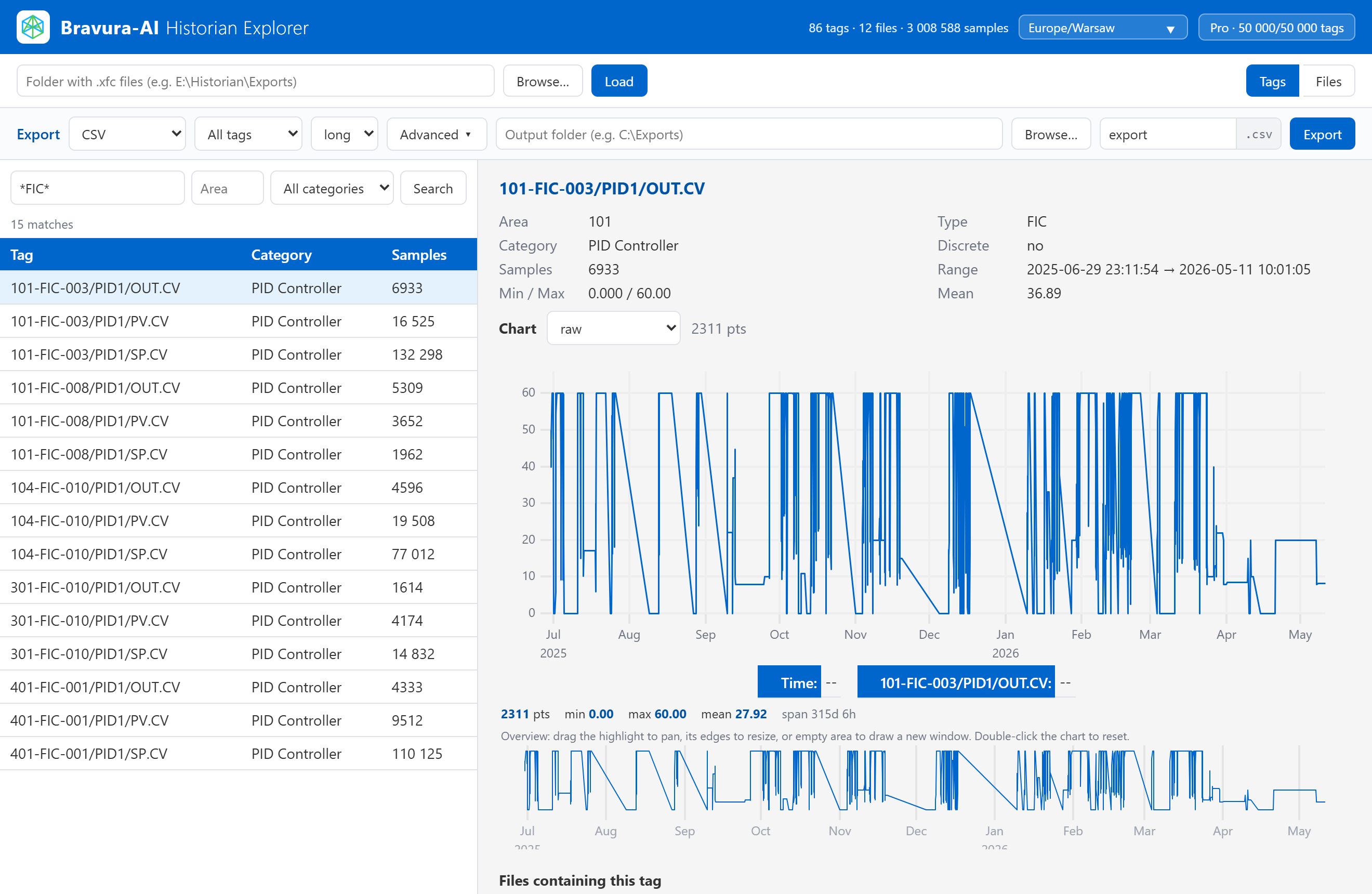
Display time zone

Pick any time zone (Local, UTC, or any IANA zone) from a searchable header picker; chart axes and metadata times re-render in your choice, and the choice persists.

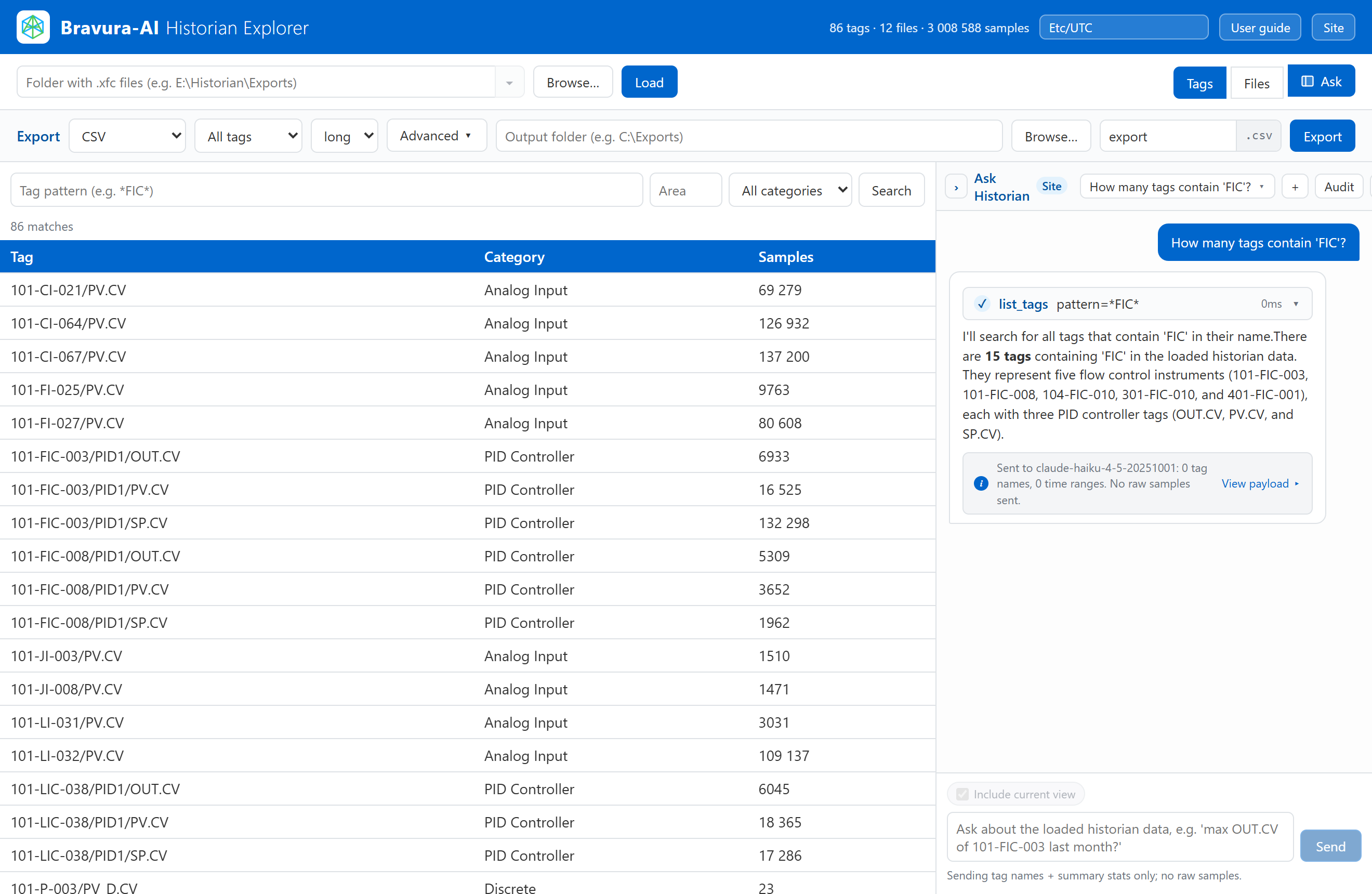
Chat with your historian data in plain English New

Ask Historian sits next to Tags and Files. Ask in plain English; answers cite the source file. Use the Bravura-AI hosted option, your own key (BYOK) with seven cloud providers, or a local model through Ollama that needs no internet connection. The note under each answer shows exactly what was sent.

Look at the data the way you want

Interactive chart with an overview brush and a live summary, plus a display time zone you choose once and the app remembers.

Interactive chart with overview brush

Drag-select on the chart (or use the mouse wheel) to zoom the X axis. Double-click the chart, or press Reset zoom, to restore the full range. A small overview chart below the main view shows the whole series with the current window highlighted: drag the highlight to pan, drag its edges to resize, or drag empty area to draw a new window. A summary strip between the two charts reports the visible window's point count, min, max, mean, and time span, updating live as you zoom or brush.

Zoom, overview brush and visible-range summary
Zoom into a window, navigate via the overview brush, see live stats for the visible range.

Display time zone

XFC data is stored in UTC. A searchable picker in the header lets you display in Local, UTC, or any IANA time zone. Chart axis labels and every metadata time re-render in the chosen zone, and the choice persists across launches per workstation.

Time zone picker in the header
Searchable picker in the header (Local, UTC, or any IANA zone).
Chart re-rendered in the chosen time zone
Same data, re-rendered in your chosen time zone.

New

Chat with your historian data in plain English

Ask Historian sits next to Tags and Files. Ask questions like "which tags drifted the most last week?" or "summarize 2-FIC-2001 around the last shutdown". Every answer cites the source file the numbers came from.

Streamed answer with a tool-call card and a citation back to the source file
A streamed answer with a tool-call card and a citation back to the source file.

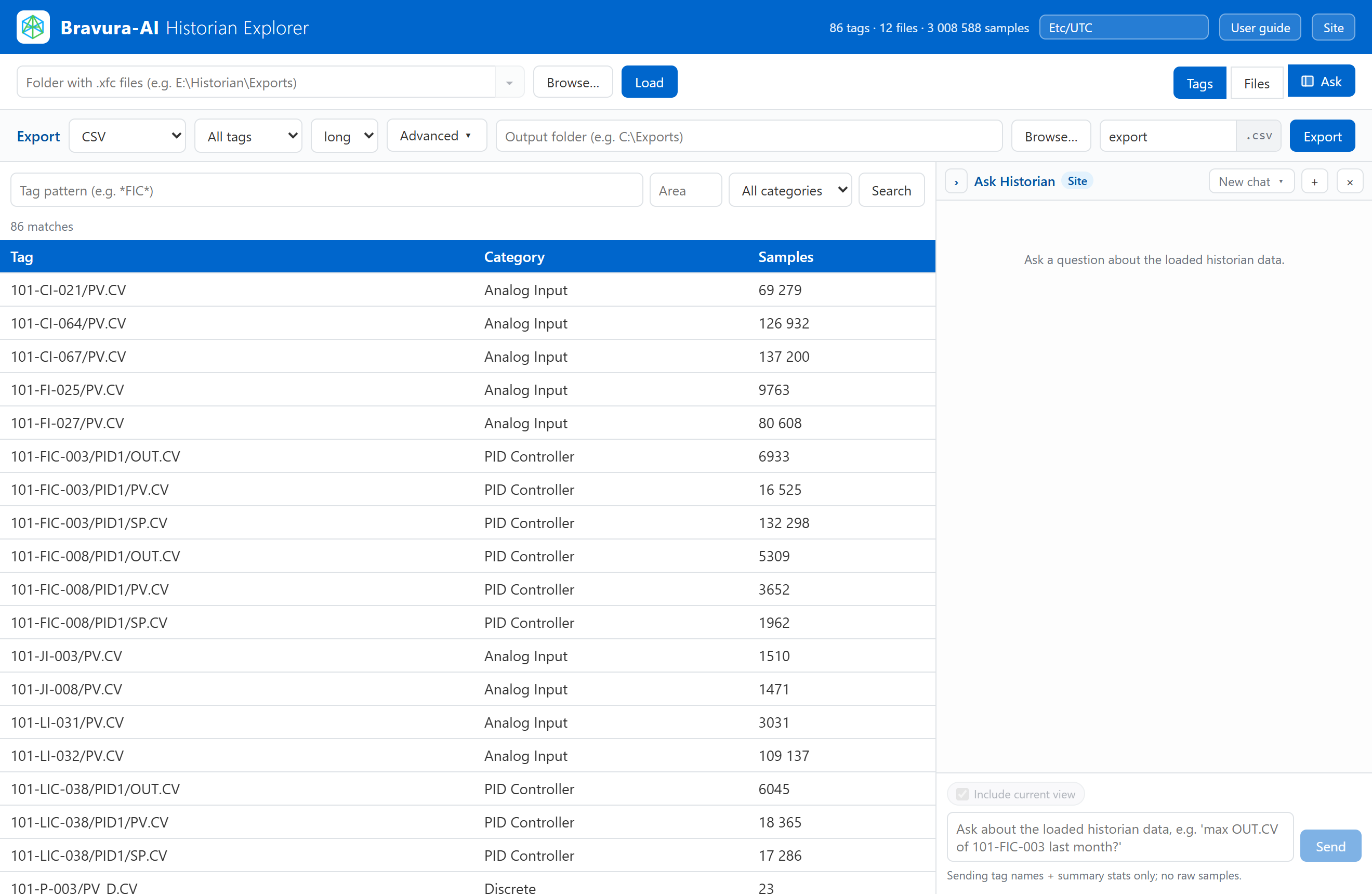
A chat tab next to Tags and Files

A right-side chat dock follows you across the app. The Tag and File detail views have Ask about this tag and Ask about this file buttons that pre-seed the chat with context. Every assistant reply carries a per-turn privacy footer that spells out exactly what left your machine.

Pick your AI provider

BYOK across seven cloud providers: Anthropic, OpenAI, Gemini, xAI, DeepSeek, Mistral, OpenRouter. Or the Bravura-AI hosted AI, which works right after install with no API key setup. The hosted option and cloud providers need an internet connection. Or run a local model through Ollama on the workstation: Ask Historian then works with no internet connection. Keys typed into the app are encrypted at rest using Windows, sent only on the request that uses them, and never sit on a Bravura-AI server.

Three privacy modes

BYOK

Your key, your bill

Connects directly to the provider you chose. Bravura-AI never sees the traffic or the bill.

Hosted

Bravura-AI's key, one invoice

Answers come from Bravura-AI hosted AI. A Pro subscription includes 500 hosted messages per month.

Local

Ollama on the workstation

Runs a local model through Ollama with the same in-app chat experience. No internet connection needed, and the chat traffic stays on the workstation.

Air-gapped PCs keep Ask Historian on local models. Air-gapped subscriptions, for PCs that can never connect, are available on request. On them Ask Historian works with local models only: the license itself refuses the hosted option and cloud providers, not just the UI.

Privacy: you see exactly what was sent

  • Answering a question may send tag names, time ranges, summary statistics and, when the analysis needs them, sample points to the provider you selected. The note under each answer shows exactly what was sent, and the session audit log keeps it.
  • With a local model through Ollama on the workstation, the chat traffic does not leave the machine.
  • Every chat session writes a structured audit log (timestamp, model, provider, tool calls, payloads sent and received). Export the whole session as a ZIP from the License panel; this is the artifact pharma and GxP customers hand to QA.
  • Telemetry is opt-in and off by default. When enabled, only anonymized tool name plus latency plus token-bucket metrics ship. Arguments and values never leave the machine.
Ask tab entry point in the main app
Open the Ask tab to chat with your loaded historian data.
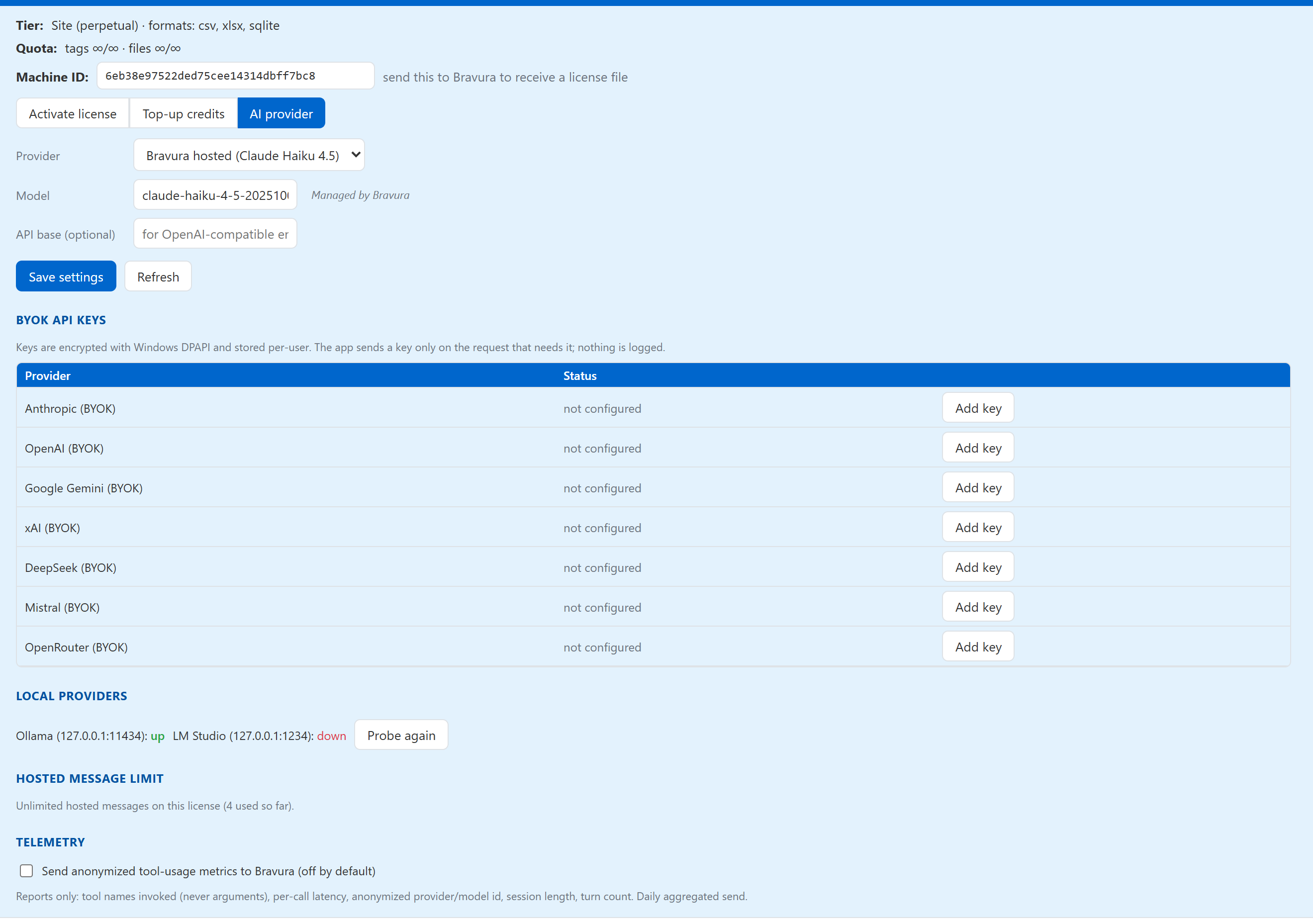
AI provider settings tab in the License panel
AI provider settings: provider, model, key (write-only), and telemetry consent.

Availability: external clients via a bundled MCP server

A bundled MCP server lets desktop AI assistants such as Cursor and Cline, and other MCP clients, connect to your loaded .xfc data and use the same tools the in-app Ask uses. It connects over stdio (standard input / output, the local connection type MCP clients use). Per-client tokens are minted from the License panel.

  • Included with every Pro subscription.
  • Not included in the Free demo.

Three steps from archive to analysis

  1. 1

    Point to your .xfc folder

    Select the folder of DeltaV Continuous Historian exports. No import, no ingest job. It reads them in place.

  2. 2

    Browse, search, chart

    Search every tag, filter by area / type / category, inspect metadata, and chart trends with on-the-fly resampling.

  3. 3

    Export to CSV / Excel / SQLite

    One click to export the tags and ranges you need, in the format your downstream tools expect.

Export that drops straight into your tools

Browsing is always free. When you're ready to take the data with you, export the exact tags and ranges you need.

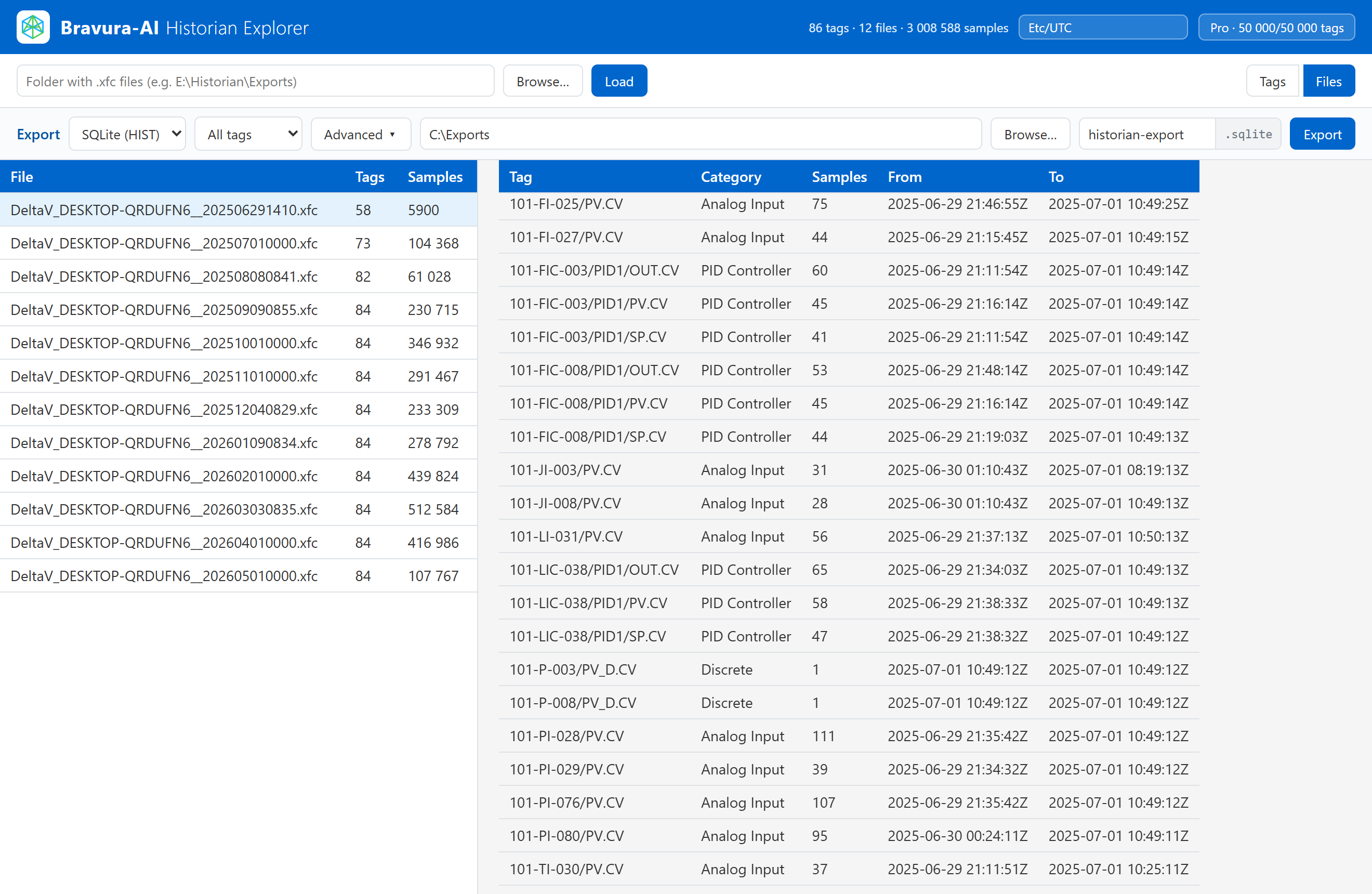
  • SQLite database (Pro): a clean Source / Tag / Sample schema you can query directly or load into analytics and BI tools. Export it raw (HIST-faithful) or as a derived resampled database.
  • CSV: long or wide layout, for scripts, spreadsheets, and quick checks.
  • Excel: one sheet per tag, or everything in a single workbook.

Raw CSV, Excel and SQLite export is included with every Pro subscription; the Free demo exports CSV. Resampling and filtering are part of Advanced Export, also included with Pro.

Export a clean SQLite (Source / Tag / Sample) database

Pricing

PlantUnity Historian Explorer Pro is a subscription, billed monthly or once a year. Browsing is always free. Quotas count the distinct files and tags you unlock for export.

How activation works

  1. Buy on the Buy page. After payment, the confirmation page shows your activation key once. Copy it and keep it private.
  2. Paste the key in the app. In PlantUnity Historian Explorer, open the License panel, paste the key and activate. The app activates this computer online.
  3. Or buy from inside the app. Start the purchase in PlantUnity Historian Explorer: it opens the same secure checkout in your browser and activates itself when the payment is confirmed, with no key to copy.

An email copy of the activation key is coming soon; until then, keep the key from the confirmation page. If you lose it, contact support@bravura-ai.com: support can check that you are the buyer and send you a new one-time link.

App version. Subscriptions need the next PlantUnity Historian Explorer release, which adds online activation. Builds up to v0.4.0 cannot activate a subscription.

Refunds, renewals and plan changes

Your subscription renews automatically at the end of each paid period until you cancel. You can ask for a full refund within 14 days of your first subscription purchase; renewal payments are not refundable, and there are no partial refunds. A cancellation or a change of plan takes effect at the end of the period you have already paid for, with no credit for the rest of it. Cancel anytime in the customer portal. To move from monthly to annual billing, contact us. If a renewal payment fails, the app keeps working for 14 more days.

Licensing built for plant PCs

Pro is a subscription, monthly or annual, for one machine. It is activated and verified online: the app checks in with the license server every 4 hours and keeps working for up to 7 days without a connection. For plant PCs that can never go online, air-gapped subscriptions are available on request; contact us if you need one.

The License panel hosts two surfaces worth knowing about. The AI provider tab next to Activate and Top-up credits holds the provider and model picker, write-only BYOK key fields (the UI shows configured or not configured, never the key itself), a hosted-usage indicator, and the telemetry consent toggle. The Remove license button (visible only when a tier other than Free is active) deactivates the license in one click and reverts the workstation to Free, for moving a seat to another machine.

Ask Historian without internet. With Pro, Ask Historian also works with a local model through Ollama, with no internet connection; the Bravura-AI hosted option and cloud providers need one.

Swipe or scroll sideways to see the whole panel, or open the full-size image below.

License panel: tier, quota and machine ID, the Activate license, Top-up credits and AI provider tabs, and the Remove license button
The License panel: activate a license, top up credits, pick an AI provider, or remove the license from this machine. Open the full-size image

Frequently asked questions

Do I need a historian server or database?

No. It reads your .xfc export files directly. There is nothing to install on the server side.

Does it work offline or on air-gapped PCs?

Browsing, search, charting and export run locally and work without an internet connection. A Pro subscription is verified online: the app checks in every 4 hours and keeps working for up to 7 days without a connection. Air-gapped subscriptions for PCs that can never connect are available on request; contact us if you need one. Ask Historian needs an internet connection for the Bravura-AI hosted option and for cloud providers (BYOK); local models through Ollama run without one.

What can I export?

CSV, Excel and a SQLite database with a clean Source / Tag / Sample schema, with every Pro subscription. The Free demo exports CSV.

What OS does it run on?

Windows 10 and Windows 11 (64-bit).

How is it licensed?

Per machine, as a Pro subscription billed monthly or once a year (see Pricing). There is no one-time (perpetual) license. For several machines, a whole site or air-gapped PCs, contact us for a quote.

Do subscriptions include updates?

Yes. Every update released while your subscription is paid is included. There is no separate maintenance fee.

What happens when a subscription ends or a payment fails?

The app keeps working until 14 days after the end of the period you paid for, both when a renewal payment fails and when you cancel. After that the license stops working until the subscription is paid again; it is never turned into the Free demo.

What happens after my hosted messages run out?

A Pro subscription includes 500 hosted messages per month. When they are used up, you can switch to your own API key (BYOK) or to a local model through Ollama at any time. Extra hosted message packs are not available yet. The Free demo stops after 2 messages.

How big a dataset can it handle?

Millions of samples across many files, with sub-second browsing on a modern Windows machine.

What is "Advanced Export"?

Resampling and filtering applied as you export: linear, step (LOCF), nearest, time-weighted, and min/max/count modes, boundary fill, quality filtering, and despike / deadband / swinging-door noise filters. It is included with every Pro subscription; the Free demo exports raw data only.

Can I export without Advanced Export?

Yes. Raw export to CSV, Excel (one sheet per tag) and a raw SQLite database is separate from Advanced Export; only the resampling and filter controls are part of Advanced Export.

How do I choose the .xfc folder?

Use the built-in folder picker: click Browse... and select the folder of exports. The app reads them in place.

Can I zoom into a section of the chart?

Yes. Drag-select on the chart (or mouse-wheel) to zoom; use the overview brush below to pan and resize the window. Double-click or Reset zoom restores the full range. The summary strip always reports min / max / mean / count for the visible window.

Which time zone are the timestamps shown in?

Your choice. The app stores timestamps in UTC but lets you pick the display zone (Local, UTC, or any IANA zone via a searchable picker in the header). Chart axes and metadata times re-render in the chosen zone, and your choice is remembered.

Do you store my API key?

No. API keys typed into the app are encrypted at rest by Windows and sent only on the request that uses them. They are never written to disk in plaintext and never sit on a Bravura-AI server.

What does Ask Historian send to the AI provider?

Answering a question may send tag names, time ranges, summary statistics and, when the analysis needs them, sample points to the provider you selected. The note under each answer shows exactly what was sent, and the session audit log keeps it. How many sample points are sent depends on the question. You can export the audit log of every session as a ZIP.

Download the free demo

Leave your details and the download unlocks right here. The demo opens 1 file / 10 tags in 15-minute sessions; browsing is unlimited.

  • Windows 10 / 11 (64-bit) · ~104 MB installer
  • Browse and export run offline once installed
  • No credit card needed
  • Try Ask Historian: two hosted messages per install, no API key needed (the hosted demo needs an internet connection).
  • Latest build: v0.4.0, released September 3, 2026.

Ready for Pro? Buy a subscription · Contact us

Evaluation

Downloads and purchases are not available with this access code. Contact us for an evaluation: sales@bravura-ai.com.

Request a quote

For several machines, a whole site, air-gapped PCs or any question: configure your request below and send it to our sales team, or just leave us a message. We reply with a written quote you can forward to your purchasing team.

Quote builder

What's included
Advanced Export
Ask Historian
External MCP
Hosted messages
Price See the Pricing page

Plans and prices are on the Pricing page; sales confirms the final price of your quote.